Python is a general purpose programming language. While it’s often taught as an introductory programming language for beginners because it’s syntax is clear and easy to use, it’s also a very powerful language. Many web applications are written in Python. And Python is one of the top two programming languages used for data science (along with R).
Why has Python become so popular for data science? Here are a few of the many reasons:
- It has a huge repository of libraries available that simplify tasks from manipulating tables of data to running complex machine learning algorithms.
- Python interfaces have been written for everything from web APIs for pulling data from web applications to powerful analytics processing engines like Apache Spark. So knowing Python allows data scientists to easily access data and interface with other technologies.
- It’s easy to work with JSON data in Python and JSON has become the standard for transferring data through web APIs.
Ok, enough on the virtues of Python. Let’s get started with the tutorial.
In this tutorial we’ll do the same analysis as we did in the Get Started with R in 20 Minutes tutorial, namely:
- Importing two CSV (comma-separated value) files
- Merging the two CSV files
- Finding an observation with a specific value in the merged files
As with the Get Started with PostgreSQL in 20 Minutes tutorial, we’ll be doing this tutorial on an AWS EC2 instance running the Ubuntu Server 16.04 Operating System which will allow us to all work from an identical computing environment.
Commission an EC2 Instance and Copy the CSV Files
Follow the steps in our Get Started with AWS in 20 Minutes tutorial to download Sean Lahman’s Baseball Database, commission an EC2 instance running Ubuntu Server 16.04 with SSD, and copy the Salaries.csv and Master.csv files from the baseball database to the EC2 instance.
Install Anaconda Python
Python is a powerful data science language partly because of the volume of libraries written for it. Unfortunately, installing and managing the libraries and their dependencies is actually a bit of a challenge. Fortunately, Continuum Analytics has developed an open source distribution of Python called Anaconda with all the popular data science libraries already installed. We’ll use the Python 2.7 version of Anaconda for this tutorial.
To install Anaconda, we need to first get the Linux repository, available from Continuum’s website. We’ll use the “wget” command in our Ubuntu EC2 instance terminal to download the repository:
ubuntu@ip-address:~$ wget https://repo.continuum.io/archive/Anaconda2-4.2.0-Linux-x86_64.sh
Now let’s install the repository:
ubuntu@ip-address:~$ bash Anaconda2-4.2.0-Linux-x86_64.sh
You’ll be prompted to press “Enter” to review the license agreement as part of the installation process. Go ahead and press “Enter”. You’ll likely have to keep pressing “Enter” to see more and more of the license until you reach the end.
Then you’ll be prompted to type “yes” to accept the license agreement. Go ahead and type “yes”.
Now you’ll see this prompt and be asked to press “Enter” to complete the installation:
[/home/ubuntu/anaconda2] >>>
Go ahead and press “Enter” to complete the installation.
After the installation completes, you’ll be asked if you want to prepend the Anaconda2 install location to PATH in your /home/ubuntu/.bashrc. Go ahead and type “yes”.
Now, you’ll be back at the Ubuntu command line prompt:
ubuntu@ip-address:~$
Start the Python Shell
For this tutorial, we’ll use Python’s interactive shell. This is just one way of using Python. We can also create full Python programs, called scripts, that we can run from the Ubuntu command line rather than doing our analysis directly in the Python Shell. Using scripts has many advantages including that we can easily reproduce our analysis or update it if we get new data. But to keep things simple, we’ll use the Python Shell for this tutorial and save scripts for a later tutorial.
Ok, let’s start the Python Shell:
ubuntu@ip-address:~$ python
Now, one challenge of using Python is that there can be multiple versions of Python on an OS, especially on a Mac or Linux machine. We can verify we are using the Anaconda Python distribution in the Python Shell by looking at the output we got when we ran the “python” command:

Import Required Libraries and Import CSV Files
As we discussed in the intro to this tutorial, Python is very powerful partly because of the vast number of libraries that extend its functionality. Some of these libraries are already included in Python’s Standard Library, others are not included and must be installed. By using Anaconda, we have an additional set of data science libraries already installed for us beyond the Python Standard Library. However, installed libraries are not by default all made available for a given Python Shell session or in a Python script. They must be imported.
To complete our analysis, we’ll use a library called Pandas which gives us access to a robust data structure called a Data Frame (similar to an R Data Frame) for working with data in tables, and a comprehensive set of functions for manipulating Data Frames.
Let’s import the Pandas library:
>>> import pandas as pd
Note the use of a convention here of importing a library and giving it an alias for reference (i.e. “pd” in this case). In the rest of the analysis, when we want to use a function that comes from the Pandas library, we’ll use “pd” at the front of the function to tell Python that the function comes from Pandas.
Ok, let’s import the salaries data:
>>> salaries = pd.read_csv(‘Salaries.csv’)
Here we are using the read_csv() function available in Pandas to read in the Salaries.csv file. Python knew to look in Pandas for the read_csv() function because we put “pd” in front of “read_csv”. The only parameter we had to pass to read_csv was the file path: ‘Salaries.csv’. The read_csv() function actually accepts a whole bunch of parameters but the default parameters happen to have been sufficient to properly import our data.
Now, let’s check how our imported data looks:
>>> salaries.head(n=5)
You should see output like this:
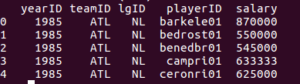
Here we issued a function called “head()” which will show us the first 5 observations in the data frame. Python know to use the salaries data frame because we wrote “salaries” in front of “head()”. The head() function accepts a parameter “n” to specify how many rows we want. In this case we said n=5.
Ok, notice two things here: first, the data imported as we expected; second, Pandas properly recognized that the first line of the file was a header and used the header to establish column names for us.
Ok, let’s import the master data:
>> master = pd.read_csv(‘Master.csv’)
Merge the Data Frames and Find the Highest Ever Salary Observation
Ok, now let’s merge the salaries and the master data frames by the common field “playerID”:
>>> mergeddata = pd.merge(salaries, master, on=’playerID’)
Here again we used a function available in Pandas called merge() which accepts many possible parameters, but the three we passed here are the two data frames we want to merge (salaries and master) and the common field to use for the merge (playerID).
Now let’s verify that “mergeddata” actually has data from both salaries and master:
>>> mergeddata.head(n=5)
You should see this output:
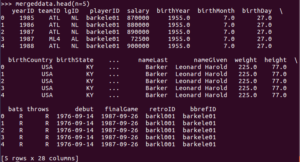
Ok, now let’s get rid of all the data we don’t care about and just keep nameFirst, nameLast, yearID, and salary:
>>> mergeddata = mergeddata[[“nameFirst”, “nameLast”, “yearID”, “salary”]]
Now let’s filter the data frame to get just the observations with the max salary, which we know to be $33,000,000 from our R tutorial:
>>> mergeddata[mergeddata.salary == 33000000]
You should see this output:

Note, as in the Get Started with R in 20 Minutes tutorial, we did something computationally inefficient here by merging the two data sets and then filtering to find the observations with the highest salary rather than filtering the data first and then merging. Almost all of the computation we did to merge the data frames was wasted because we discarded most of it for the final output. For this tutorial, we accepted the inefficiency for the purpose of illustrating how the merge() function works. When doing data analysis for real, it’s important to think about how to make the analysis efficient, especially if you are working with large scale data or procedures that are repeated over and over.
Ok, now exit out of the Python Shell:
>>> exit()
Then exit out of the EC2 ssh terminal session:
ubuntu@ip-address:~$ exit
Please remember to log back into your AWS account, click on “Instances” then go to “Actions>Instance State>Terminate” to terminate your EC2 instance. If you don’t do this, the EC2 instance will keep running indefinitely and will eventually start to accrue charges to your account.
Continue to our next tutorial: Get Started with Apache Spark in 20 Minutes.